2021 5

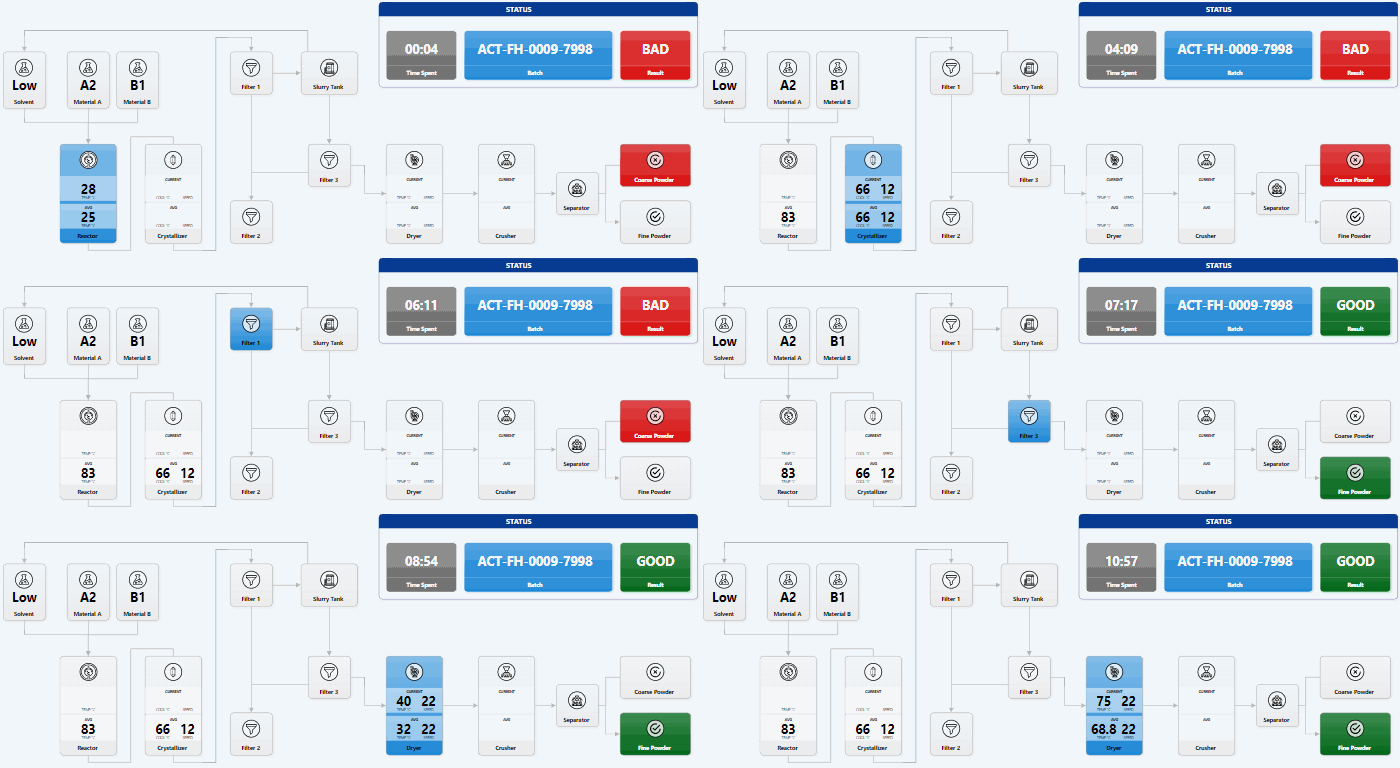
The #HarryPotter Screen Time video featured a bar chart race made in PowerPoint. Many of you asked how I made it. Here’s a step-by-step tutorial. https://youtu.be/E1SeoUV8awI (BTW, there are just 9 people on LinkedIn who match “bar chart race” and #powerpoint. This is for you, friends!) Gramener converted this feature into a product, SlideSense.ai. But more on that later 🙂 The original video is at https://www.linkedin.com/feed/update/urn%3Ali%3Aactivity%3A6801138072068214784/ LinkedIn
This is my first Lightboard video – interacting with a data visualization on-camera. Hans Rosling did something like this with BBC 4. That’s been my inspiration. In this video, I share the screen time of the Harry Potter supporting cast. The bar chart race was created in PowerPoint, and the lightboard effect was created with OBS. (I’ll share a tutorial soon.) What do you think of the video? Any comments? Questions? ...

I’ve a theory. PowerPoint can do anything. (Excel too). Shape operations are especially powerful. In this tutorial, I create an address card icon and export it as SVG. I don’t need Sketch / Illustrator for this. They’re great. But no, thanks. I’m pretty good with PowerPoint 😄 Have you seen PowerPoint do anything that made you go “Wow! This is cool!”? Do share. I’d love to hear about it. http://www.s-anand.net/blog/designing-complex-shapes-in-powerpoint/ LinkedIn

Designing Complex Shapes in PowerPoint

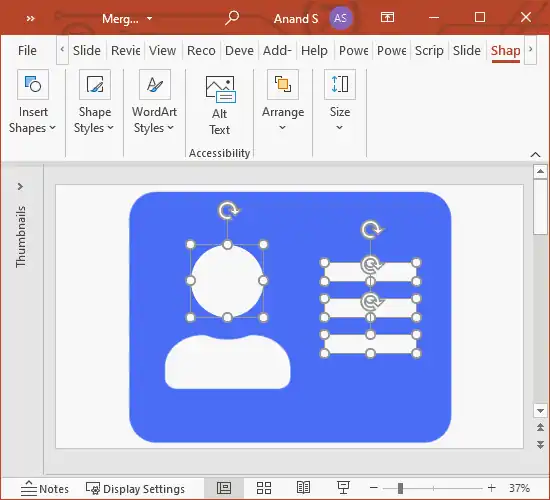
I use PowerPoint instead of Adobe Illustrator or Sketch. I’m familiar with it, and it does everything I need. One of the features I’m really excited by in PowerPoint is the ability to manipulate shapes. Let’s say you have a rectangle and a circle. You can select both of these shapes and in the Shape Format > Merge Shapes dropdown, you can: merge them with a union combine them (like an XOR operation in Boolean algebra) fragment them, which breaks them up into pieces intersect them subtract them This is so powerful that you can create any kind of shape. Let’s take an icon from Font Awesome at random – say an address card – and create it. ...

How to direct a data movie

Ganes and I created a data movie on speed-cubing records as part of a Gramener hackathon. Here’s a video of us talking about how we created it. Anand: We picked the Rubik’s cube story for this hackathon. Tell me more about how this excited you. Ganes: Since my son started solving the Rubik’s cube a few months back, I’ve been fascinated with these competitions. I still don’t know how to solve it, but I like watching it. ...

2020 1

Create SVG with PowerPoint

With Office 365, PowerPoint supports SVG editing. This is really powerful. It means you can draw in PowerPoint and render it on the web – including as interactive or animated visuals. For example, the SVG in this simulator was created just with PowerPoint. The process is simple. Draw anything. Select any shapes and right-click. Select Save As Picture… and choose SVG. For example, you can use PowerPoint to create Smart Art, export it as SVG, and embed it into a page. See this example on CodePen. ...

2010 1

Make backgrounds transparent

This is the simplest way that I’ve found to make the background colour of an image transparent. Download GIMP Open your image. I’ll pick this one: Optional: Select Image – Mode – RGB if it’s not RGB. Select Colors – Colors to Alpha… Click on the white button next to “From” and select the eye-dropper. Pick the green colour on the image, and click OK The anti-aliasing is preserved as well. ...

2009 1

Automating PowerPoint with Python

Writing a program to draw or change slides is sometimes easier than doing it manually. To change all fonts on a presentation to Arial, for example, you’d write this Visual Basic macro: Sub Arial() For Each Slide In ActivePresentation.Slides For Each Shape In Slide.Shapes Shape.TextFrame.TextRange.Font.Name = "Arial" Next Next End Sub If you didn’t like Visual Basic, though, you could write the same thing in Python: import win32com.client, sys Application = win32com.client.Dispatch("PowerPoint.Application") Application.Visible = True Presentation = Application.Presentations.Open(sys.argv[1]) for Slide in Presentation.Slides: for Shape in Slide.Shapes: Shape.TextFrame.TextRange.Font.Name = "Arial" Presentation.Save() Application.Quit() Save this as arial.py and type “arial.py some.ppt” to convert some.ppt into Arial. ...

2005 1

Office 12

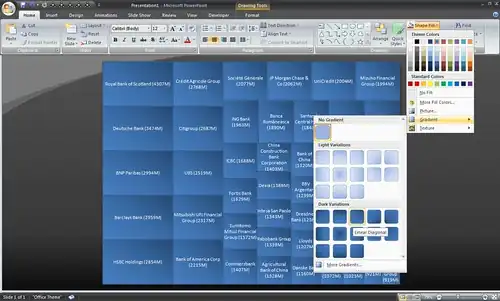
A 40-minute video preview of Office 12. I don’t normally watch videos this long. But it was worth it. Office 12 has a REALLY different user interface (critique). It’s also supposed to have a lot of new features. What struck me the most in the video is how Powerpoint creates diagrams. You type text, and Powerpoint can automatically convert that into value chains, org charts, etc. Julie mentions that a blind user was able to create graphics using this feature, and that this was the first time she has been able to create graphics in all her life!