PPK’s State of the Browser – IE Edition mentions one reason why IE6 will probably stay on for a while.
Now why do I expect IE6 to stick around while IE7 goes down? The answer is simple: Intranets… many office workers will continue to be condemned to IE6.
At work, that is. It’s quite likely that on their private computer at home they run another browser — IE7 or 8, Firefox, or maybe one of the smaller ones.
… Basically, most of the IE6 market share comes from office-hour surfing, while it drops significantly in the after-hours period.
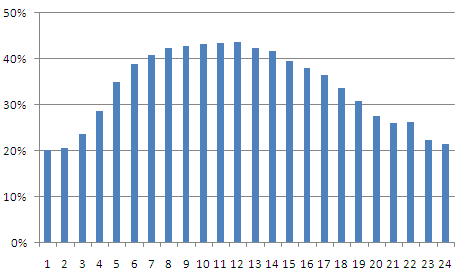
I checked the numbers on my site. It’s bang on. Last month, the percentage of IE6 users around noon was a little over 40%. At midnight, the percentage was 20%.
Percentage of IE6 users over a 24-hour window
Given that the bulk of my audience is from India, I would assume that these statistics are probably representative of Indian corporates. But I guess it means that there’s a fair bit of music listening happening at work. Probably a good thing.

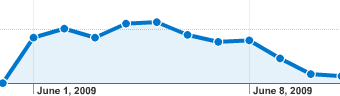
This graph is the number of referrals Microsoft’s new search engine, Bing, sent to my site over the last few days. Looks like the hype is dying out. Though Bing did leapfrog Yahoo briefly, that lasted just one day.
After much hunting, I finally settled on Hedger Wang’s simple round CSS links as the most acceptable cross-browser round button implementation. The minified CSS is about 2.5KB, and the syntax is very simple. To make an input button into a round button, just wrap it within a <span class="button">:
<span class="button"><input type="submit"></span>
… and it’s just as easy to convert a link into a rounded button:
<a class="button" href=”/”><span>Home</span></a>
It works by using a transparent PNG / GIF that looks like this:

The first button is the default button. The second appears on hover. The bottom two are for disabled buttons.
Can we easily create buttons in different colours?
That’s what this post is about: creating that image with round buttons and gradients.
When I tried creating these rounded buttons myself (and trying to do it in an automated was as usual), I saw 3 possible approaches:
- Create it using PowerPoint via Python and export as a PNG.
So we make a curved box, put in the appropriate gradients and borders, and export it as a PNG. But the problem is I couldn’t figure out how to get transparent PNGs.
- Create it in GIMP using script-fu plugin.
The problem is, I don’t know scheme or GIMP’s API. So I gave up on this as well.
- Create it using Python Image Library.
This was inspired by Nadia’s PIL Tutorial: How to Create a Button Generator. Let me explain how this works.
The first step is to create a ‘button-mask.png’ like this one:
- Create a transparent 300 x 120 image in GIMP
- Selecting a box from (0,0) to (300,30)
- Shrink it by 2 pixels
- Convert it to a rounded rectangle with a radius of 80%
- Fill this in white
- Copy it to 60 pixels below
Now, we need code to create a gradient:
start, end = (192, 192, 224), (255, 255, 255)
grad = Image.new('RGBA', (300, 120))
draw = ImageDraw.Draw(grad)
for y in range(0, 30):
draw.line(((0,y),(300,y)), fill=rgb(start, end, y/30.0))
draw.line(((0,y+60),(300,y+60)), fill=rgb(start, end, 1.0-y/30.0))
Now that the gradient is created, convert that into a round button by loading button-mask.png’s alpha layer onto the gradient:
mask = Image.open('button-mask.png').convert('RGBA').split()[3]
border = Image.open('button-border.png').convert('RGBA')
grad.putalpha(mask)
grad.save('button.png')
There it is: a simple round button generator. You can see a sample of these buttons at my Dilbert search site.