Auto reloading pages

After watching Bret Victor’s Inventing on Principle, I just had to figure out a way of getting live reloading to work. I know about LiveReload, of course, and everything I’ve heard about it is good. But their Windows version is in alpha, and I’m not about to experiment just yet.

This little script does it for me instead:

(function(interval, location) {
  var lastdate = "";
  function updateIfChanged() {
    var req = new XMLHttpRequest();
    req.open('HEAD', location.href, false);
    req.send(null);
    var date = req.getResponseHeader('Last-Modified');
    if (!lastdate) {
      lastdate = date;
    }
    else if (lastdate != date) {
      location.reload();;
    }
  };
  setInterval(updateIfChanged, interval);
})(300, window.location)


It checks the current page every 300 milliseconds and reloads it if the Last-Modified header is changed. I usually include it as a minified script:

<script>(function(d,c){var b="";setInterval(function(){var a=new
XMLHttpRequest;a.open("HEAD",c.href,false);a.send(null);
a=a.getResponseHeader("Last-Modified");if(b)b!=a&&
c.reload();else b=a},d)})(300,window.location)</script>

There are no dependencies on any library, like jQuery. However, it requires that the file be on a web server. (It’s easy to fix that, but since I always run a local webserver, I’ll let you solve that problem yourself.)

Windows XP virtual machine

Here’s the easiest way to set up a Windows XP virtual machine that I could find.

(This is useful if you want to try out programs without installing it on your main machine; test your code on a new machine; or test your website on IE6 / IE7 / IE8.)

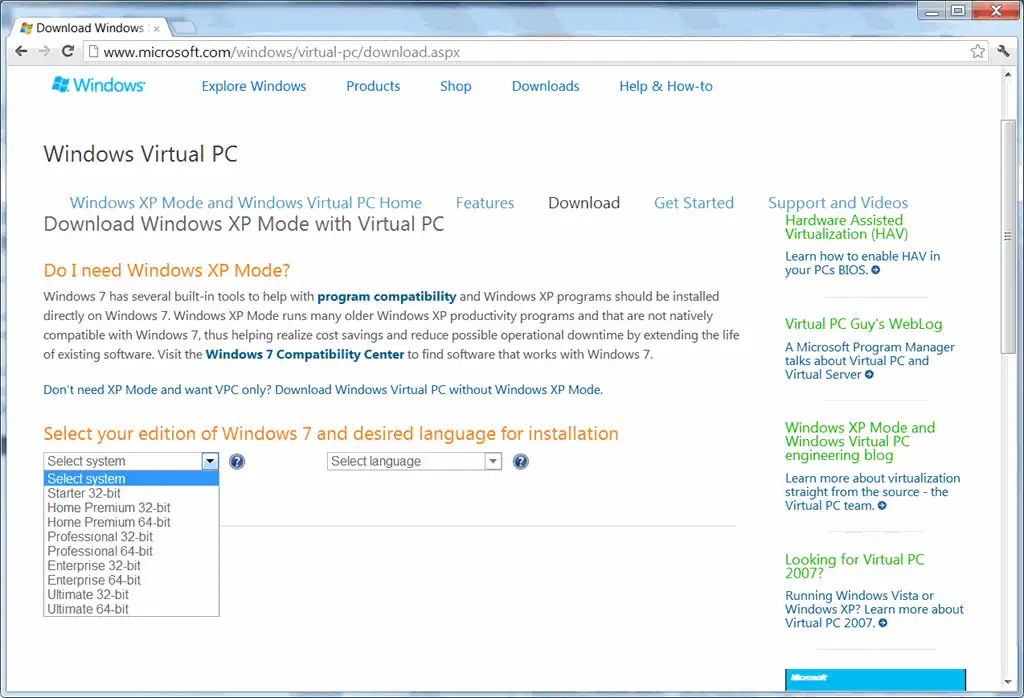
  1. Go to the Virtual PC download site. (I tried VirtualBox and VMWare Player. Virtual PC is better if you’re running Windows on Windows.)
    image
    If you have Windows 7 Starter or Home, select “Don’t need XP Mode and want VPC only? Download Windows Virtual PC without Windows XP Mode.”
    If you have Windows Vista or Windows 7, select “Looking for Virtual PC 2007?”
  2. Download it. (You may have to jump through a few hoops like activation.)
  3. Download Windows XP and run it to extract the files. (It’s a 400MB download.)
  4. Open the “Windows XP.vmc” file – just double-clicking ought to work. At this point, you have a working Windows XP version. (The Administrator password is “Password1”.)
  5. Under Tools – Settings – Networking – Adapter 1, select “Shared Networking (NAT)”
    image

That’s pretty much it. You’ve got a Windows XP machine running inside your other Windows machine.

Update (18 Sep 2012): I noticed something weird. The memory usage of VMWindow and vpc.exe is tiny!

image

Between the two processes, they take up less than 30MB of memory. This is despite the Windows XP Task Manager inside the virtual machine showing me 170MB of usage. I’ve no clue what’s happening, but am beginning to enjoy virtualisation. I’ll start up a few more machines, and perhaps install a database cluster across them.

Inspecting code in Python

Lisp users would laugh, since they have macros, but Python supports some basic code inspection and modification.

Consider the following pieces of code:

margin = lambda v: 1 - v['cost'] / v['sales']

What if you wanted another function that lists all the dictionary indices used in the function? That is, you wanted to extract cost and sales?

This is a real-life problem I encountered this morning. I have 100 functions, each defining a metric. For example,

  1. lambda v: v['X'] + v['Y']
  2. lambda v: v['X'] - v['Z']
  3. lambda v: (v['X'] + v['Y']) / v['Z']

I had to plot the functions, as well as each of the corresponding elements (‘X’, ‘Y’ and ‘Z’) in the formula.

Two options. One: along with each formula, maintain a list of the elements used. Two: figure it out automatically.

Each function has a func_code attribute. So, when you take

margin = lambda v: 1 - v['cost'] / v['sales']

margin.func_code is a “code object”. This has a bunch of interesting attributes, one of which is co_consts

>>> margin.func_code.co_consts
(None, 1, 'cost', 'sales')

There — I just pick the strings out of that list and we’re done (for simple functions at least.)

Check out http://docs.python.org/reference/datamodel.html and search for func_ — you’ll find a number of interesting things you can do with functions, such as

  1. Finding and changing the default parameters
  2. Accessing the global variables of the namespace where the function was defined (!)
  3. Replacing the function code with new code

Also search for co_ — you’ll find some even more interesting things you can do with the code:

  1. Find all local variable names
  2. Find all constants used in the code
  3. Find the filename and line number where the code was compiled from

Python also comes with a disassembly module dis. A look at its source is instructive.