I wrote about SSH Tunneling through web filters using Amazon’s EC2 at 8 cents/hr. With Rackspacecloud, you can get that down to 1.5 cents/hr. This turns out to be a lot simpler than EC2 as well! Ingredients
- Rackspacecloud account (sign up for free – you won’t be charged until you use it)
- Putty (which may be available on your Intranet, if you’re lucky)
Directions
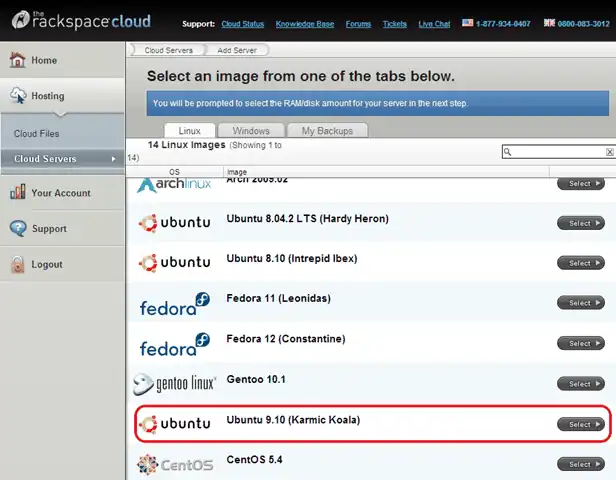
- On the Rackspacecloud console, click on wordpress website hosting– Cloud Servers – Add Server and select Ubuntu 9.10 (Karmic Koala). Actually, you can pick any other instance. I’m going to talk through this using Ubuntu 9.10 as the example.
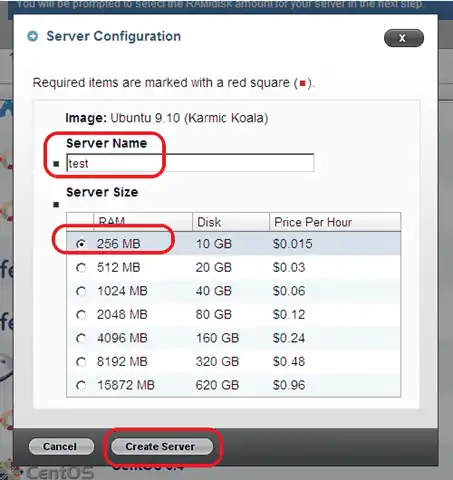
- Type any server name, pick a 256MB RAM instance, and click on Create Server.
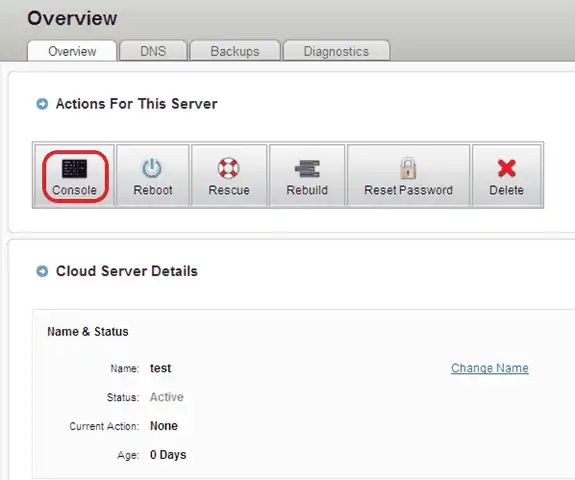
- Once the server has started, you’ll get the screen below. Click on the Console to open a session.
- Your password would have been e-mailed to the account you registered with. Log in as root with that password. Now type the following:
sed –i “s/^Port 22/Port 443/” /etc/ssh/sshd_config /etc/init.d/ssh restart
[](/blog/assets/ssh4.webp)
5. Run Putty. Type in **[root@](mailto:root@<server-IP-address)**[**<server-IP-address**](mailto:root@<server-IP-address)**>** as the host name, and **443** as the port

6. Under **Connection > Proxy**, set **HTTP** as the proxy type. Type in the **Proxy hostname** and **Port** you normally use to access the Internet. Select **Yes** for **Do DNS name lookup at proxy end**. Type in your Windows login ID and password.

7. Under **Connection > SSH**, select **Enable Compression**.

8. Under **Connection > SSH > Tunnels**, type **9090** as the **Source port**, **Dynamic** as the **Destination**, and click **Add**.

9. Now click **Open**. You should get a terminal into your Rackspacecloud instance. Log in with the same password as before.
10. Open your Browser, and set the SOCKS server to localhost:9090. For Internet Explorer, go to **Tools – Options – Connections – LAN Settings**, select **Use a proxy ...**, click on **Advanced**, and type **localhost**:**9090** as the **Socks** server. Leave all other fields blank.

11. For Firefox, go to **Tools – Options – Advanced – Network – Settings** and select **Manual proxy configuration**. Set the Socks Host to **localhost**:**9090** and leave all other fields blank.

12. Also, go to URL **about:config**, and make sure that **network.proxy.socks\_remote\_dns** is set to **true**.
---
## Comments
<!-- wp-comments-start -->
- **Kishor Gandham** _28 Feb 2010 3:41 pm_:
Excellent post Anand. I was able to connect to Gmail while at work through the SSH tunnel using the free shell account provided by CJB.
One issue that I faced: Putty doesnt seem to be supporting HTTP proxies with NTLM authentication. To overcome, I use NTLMAPS (http://ntlmaps.sourceforge.net/) to create a local HTTP proxy.
Cheers,
Kishor
- **[S Anand](http://www.s-anand.net/)** _11 Feb 2010 9:48 pm_:
Cool tip from Amit http://www.google.com/profiles/chakradeo
There is another Free (and slow) option. Use http://www.cjb.net/shell.html
They run ssh server on port 22 and 443. It is a basic account, and they run all outbound TCP traffic via the TOR network, which gives you anonymity too. But the downside is the slow speed!
- **pgt** _13 Feb 2010 3:39 pm_:
The 1.5c/hour is just a teaser and for all practical purposes this works out to $10.95/month as there is no option to shutdown the machine.
From their FAQ
Currently the server would either be running or you would have to delete it altogether. There is no "suspension" mode where you are not charged while not receiving traffic to the server
- **[S Anand](http://www.s-anand.net/)** _14 Feb 2010 4:56 pm_:
@pgt: well, not quite. You can use it hourly. That's how I do it. I just create an instance when I need to, use it for an hour or two, and then shut it down.
- **i** _31 Mar 2012 8:29 pm_:
While you can't suspend, you can save a custom image of the server with your sshd config, usernames, passwords, RSA keys, etc. already set up. Then you can create an instance as needed and delete it when you're done, without duplication of effort.
<!-- wp-comments-end -->