Opening programs from the Start - All Programs menu is painful. For many years, I relied on the quick launch bar.

But it’s space constrained. There are only so many applications you can place there. I want space enough for frequently used documents as well. Recently, I decided that I need all the space on the screen. So my task bar is on auto hide, and that makes the quick launch bar a little tougher to use as well. And finally, I can’t use the quick launch bar with the keyboard. That’s important.
So I switched to the pinned menus on the Start Menu.
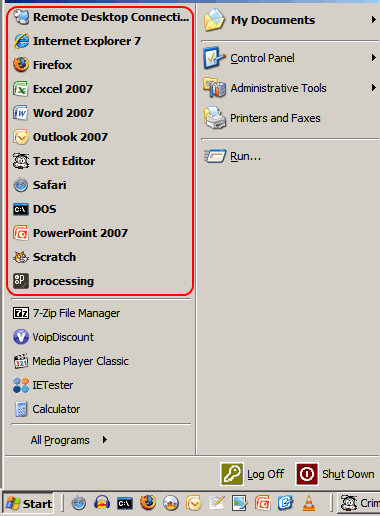
This works better with the keyboard. I access Word, I just type the Ctrl-Esc, W. Excel: Ctrl-Esc, E. But I run short of letters soon. I have trouble between Powerpoint and processing, for instance. And I can’t store documents.
I tried Enso Launcher and Launchy, both of which are great products, but I just can’t stand the thought of them hogging up all the memory that they do. Launchy in particular.
Given that I almost always have one or two command prompts open, I write my own little tool to do the job now. It’s a command line launcher I’ve written in Perl. I call it “o”. At the first run, it indexes my hard disk. (Well, not all of it. I’ve picked what I need.) Now, if I want to read Harry Potter and the Deathly Hallows, I just type:
> o harry potter hallows
If I wanted to pick a Harry Potter book, I could:
> o harry potter
    0: D:/Entertainment/Books/Hugo Awards/2001 - J K Rowling - Harry Potter and the Goblet Of Fire.rar
    1: D:/Entertainment/Books/J K Rowling.1.Harry Potter and The Sorcerer's Stone.pdf
    2: D:/Entertainment/Books/J K Rowling.2.Harry Potter and The Chamber of Secrets.pdf
    3: D:/Entertainment/Books/J K Rowling.3.Harry Potter and The Prisoner of Azkaban.pdf
    4: D:/Entertainment/Books/J K Rowling.4.Harry Potter and The Goblet of Fire.doc
    5: D:/Entertainment/Books/J K Rowling.5.Harry Potter and the Order of the Phoenix.pdf
    6: D:/Entertainment/Books/J K Rowling.6.Harry Potter and the Half-Blood Prince.pdf
    7: D:/Entertainment/Books/J K Rowling.7.Harry Potter and the Deathly Hallows.pdf
    8: D:/Entertainment/Books/J K Rowling.The Harry Potter Encyclopedia.doc
    9: D:/My Pictures/2005-06 London/2005-07-16 06 Waterstones Oxford Street Harry Potter release.JPG
    ... more
> (0-9, q, any word): prince
D:/Entertainment/Books/J K Rowling.6.Harry Potter and the Half-Blood Prince.pdf
The program lists the files matching the words I typed, and lets me filter within that.
I just wrote this yesterday, and already, I’ve used it dozens of times. Here’s the source.
PS: While I was at it, I downloaded a Flickr uploader for Perl. So I can now upload images with the command line. This easily saves me at least 5 minutes per article.
Comments
I got equally bugged long back and wrote a python program called fo (folder opener ;-)
Here it is - crude but worked pretty well \
@setlocal enableextensions & python -x %~f0 %* & goto :EOF \
import osimport ConfigParser
import sys
CONFIGFILENAME = “config.ini”
CONFIGFILENAME1 = “config1.ini”
cleanInp = ‘’
scuth = {}
\
Load all the config file details in a hash \
cfgFile = ConfigParser.ConfigParser()cfgFile.read(CONFIGFILENAME)
cfgFileFP = open(CONFIGFILENAME,‘r+’)
scuts = cfgFile.items(“shortcuts”)
\
load into a dictionary \
for (x,y) in scuts:scuth[x]=y
print “““Folder and file rapid opener (FO)
————————————
Ctrl-Alt-C - to start
@shortcut,path - to add a shortcut
x - exit
————————————”””
while cleanInp != ‘x’:
inp = raw_input(“Your wish Master!:”)
cleanInp = inp.strip()
if cleanInp.find(’@’) == -1:
try:
os.startfile(scuth[cleanInp])
except:
pass
else:
tmp = cleanInp.split("@")[1]
tmp1 = tmp.split(",")
cfgFile.set(“shortcuts”,tmp1[0], tmp1[1])
cfgFile.write(cfgFileFP)
q
Did you try slickrun.. It is extremely slick..
@Sathish: How much memory does Slickrun use up? Given some of the apps I’m running on my 1GB laptop, I’m having to count each byte!
enable google desktop by ctrl-ctrl
in the search bar first few alphabets of the app..invariably it shows me the app i need.
BTW Processing.org seems to be interesting, plan to check it out soon!
Cheers!