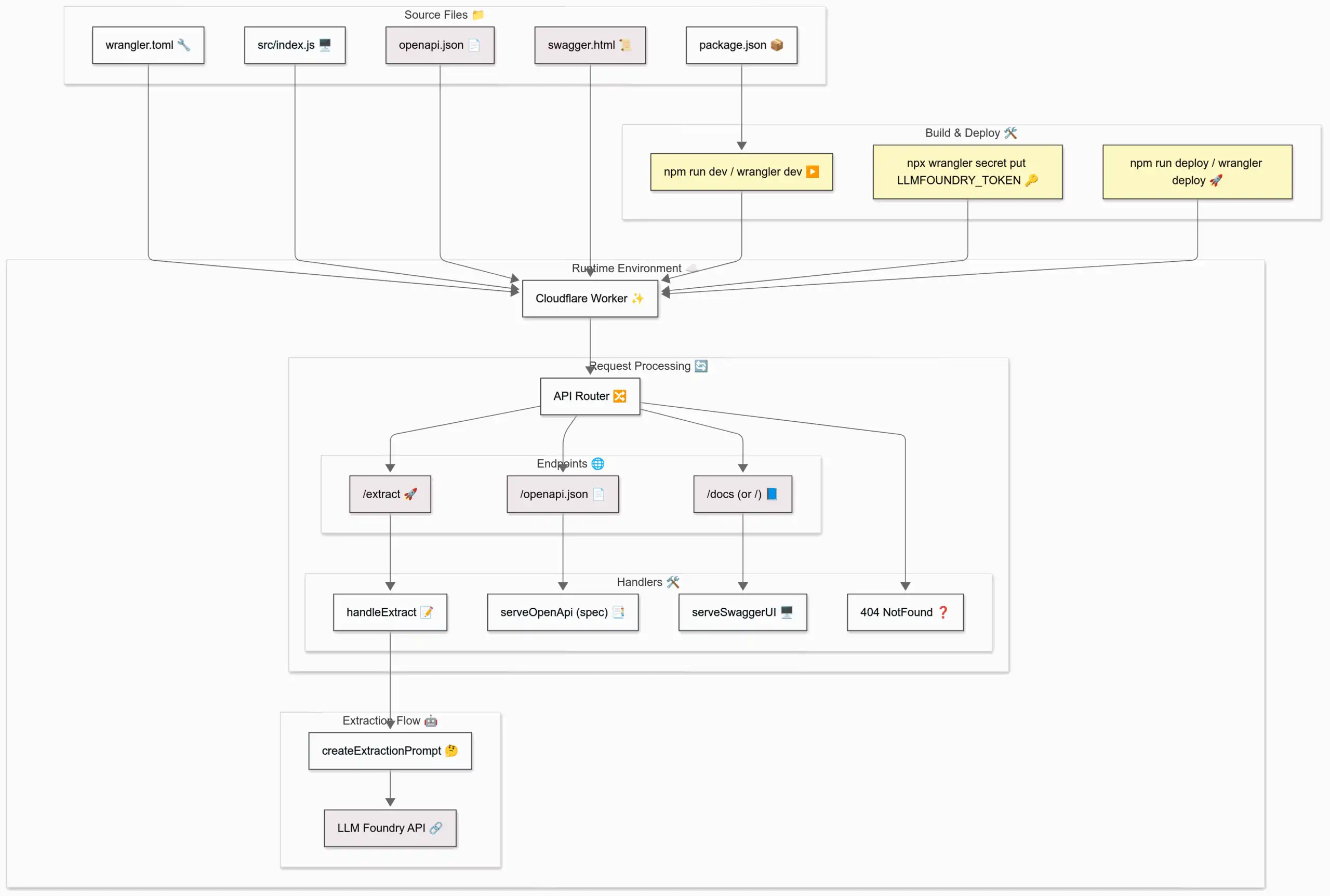
Here’s my current workflow to create technical architecture diagrams from code.
STEP 1: Copy the code
Here’s a one-liner using files-to-prompt to copy all files in the current directory:
fd | xargs uvx files-to-prompt --cxml | xclip -selection clipboard
Or, you can specify individual files:
uvx files-to-prompt --cxml README.md ... | xclip -selection clipboard
STEP 2: Prompt for the a Mermaid diagram
Mermaid is a Markdown charting language. I use this prompt with O4-Mini-High or O3:
Create a Mermaid architecture diagram for the files below.
Make sure that the diagram is rich in visual detail and looks impressive. Use the “neutral” theme. Name nodes and links semantically and label them clearly. Avoid parantheses. Quote subgraph labels. Use apt
shape: rect|rounded|stadium|...for nodes. Add suitable emoticons to every node. Style nodes and links with classes most apt for them.Follow that with a bulleted explanation of the architectural elements that is suitable for adding to a slide.
Finally, double-check the architecture against the codebase and provide a step-by-step validation report.
[PASTE CODE]
STEP 3: Copy the diagram into Mermaid Live Editor
Here’s a sample output that you can paste into a new Mermaid Playground:
%%{init: {'theme':'neutral'}}%%
flowchart TB
  %% Source files
  subgraph "Source Files 📁"
    direction LR
    RT_wr[wrangler.toml 🔧]:::config
    PK_pkg[package.json 📦]:::config
    JS_idx[src/index.js 🖥️]:::code
    JSON_spec[openapi.json 📄]:::assets
    HTML_swagger[swagger.html 📜]:::assets
  end

  %% Build & deploy steps
  subgraph "Build & Deploy 🛠️"
    direction LR
    DEV["npm run dev / wrangler dev ▶️"]:::action
    SECRET["npx wrangler secret put LLMFOUNDRY_TOKEN 🔑"]:::action
    DEPLOY["npm run deploy / wrangler deploy 🚀"]:::action
  end

  %% Runtime environment
  subgraph "Runtime Environment ☁️"
    direction TB
    CF_WORKER["Cloudflare Worker ✨"]:::worker

    subgraph "Request Processing 🔄"
      direction LR
      API_ROUTER["API Router 🔀"]:::logic

      subgraph "Endpoints 🌐"
        EXTRACT["/extract 🚀"]:::endpoint
        OPENAPI["/openapi.json 📄"]:::endpoint
        DOCS["/docs (or /) 📘"]:::endpoint
      end

      subgraph "Handlers 🛠️"
        HANDLE["handleExtract 📝"]:::logic
        SERVE_SPEC["serveOpenApi (spec) 📑"]:::logic
        SERVE_SWAGGER["serveSwaggerUI 🖥️"]:::logic
        NOT_FOUND["404 NotFound ❓"]:::logic
      end
    end

    subgraph "Extraction Flow 🤖"
      PROMPT["createExtractionPrompt 🤔"]:::logic
      GPT_API["LLM Foundry API 🔗"]:::external
    end
  end

  %% Connections
  RT_wr --> CF_WORKER
  PK_pkg --> DEV
  JS_idx --> CF_WORKER
  JSON_spec --> CF_WORKER
  HTML_swagger --> CF_WORKER

  DEV --> CF_WORKER
  SECRET --> CF_WORKER
  DEPLOY --> CF_WORKER

  CF_WORKER --> API_ROUTER
  API_ROUTER --> EXTRACT
  API_ROUTER --> OPENAPI
  API_ROUTER --> DOCS

  EXTRACT --> HANDLE
  OPENAPI --> SERVE_SPEC
  DOCS --> SERVE_SWAGGER

  HANDLE --> PROMPT
  PROMPT --> GPT_API

  API_ROUTER --> NOT_FOUND

  %% Styling classes
  classDef config     fill:#f0f0f0,stroke:#333,stroke-width:1px;
  classDef code       fill:#e0f7fa,stroke:#333,stroke-width:1px;
  classDef assets     fill:#fce4ec,stroke:#333,stroke-width:1px;
  classDef action     fill:#fff9c4,stroke:#333,stroke-width:1px;
  classDef worker     fill:#e8f5e9,stroke:#333,stroke-width:1px;
  classDef logic      fill:#e3f2fd,stroke:#333,stroke-width:1px;
  classDef endpoint   fill:#ffebee,stroke:#333,stroke-width:1px;
  classDef external   fill:#ede7f6,stroke:#333,stroke-width:1px;
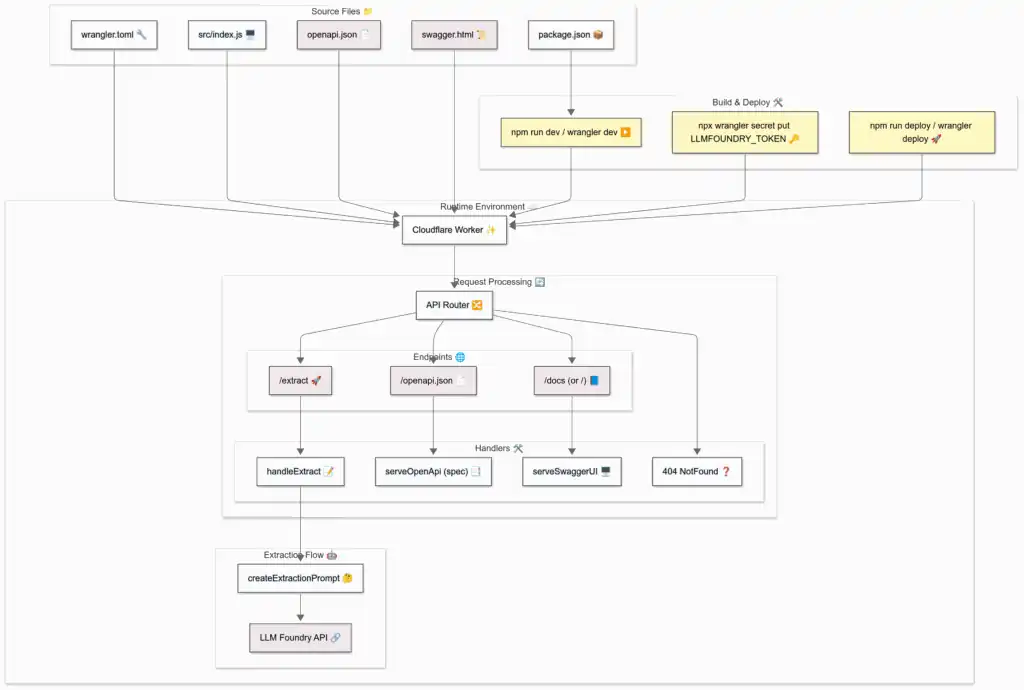
STEP 4: Export the diagram
- If you log in, you can export as PNG.
- If not, you can export it as SVG or take a screenshot.
Note: Technically, this is a flowchart, not an architecture diagram. Mermaid does support architecture diagrams, but they are in beta and don’t look good.
Comments