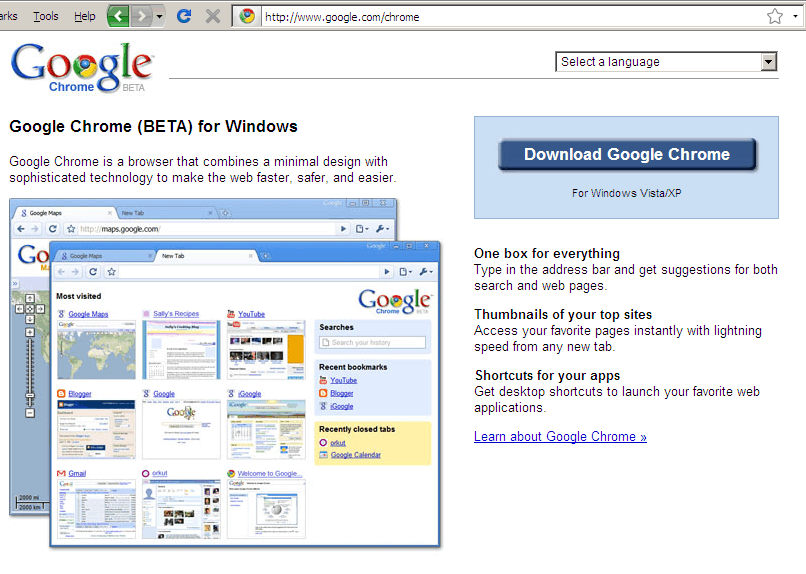
I went to the Google Chrome site.
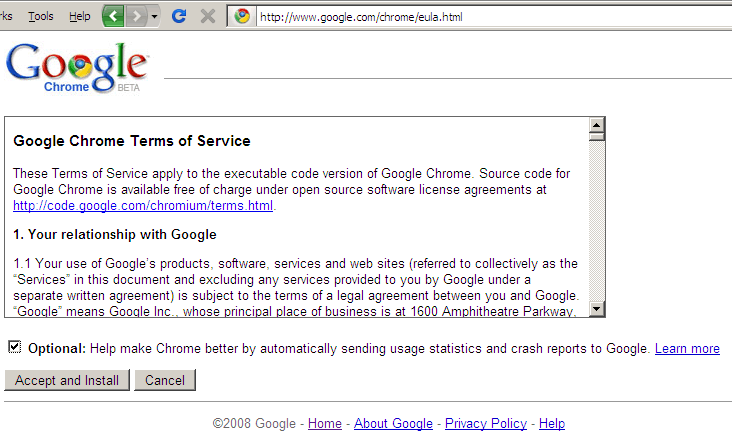
Clicking on the “Accept and Install” button…
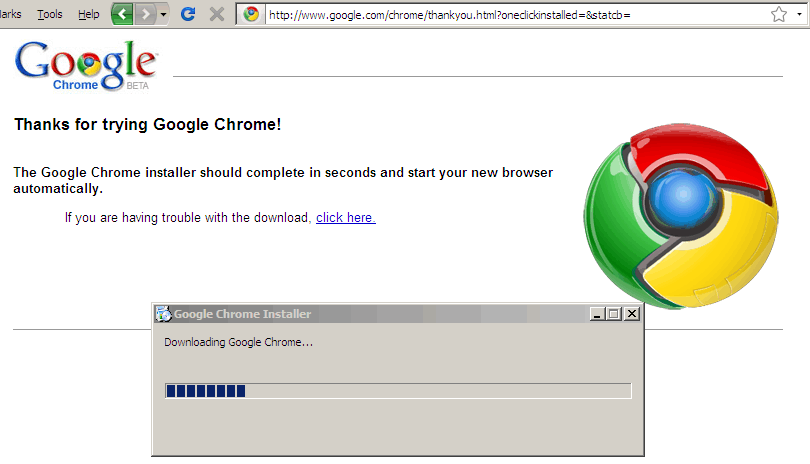
… automatically launched the downloader in Firefox…
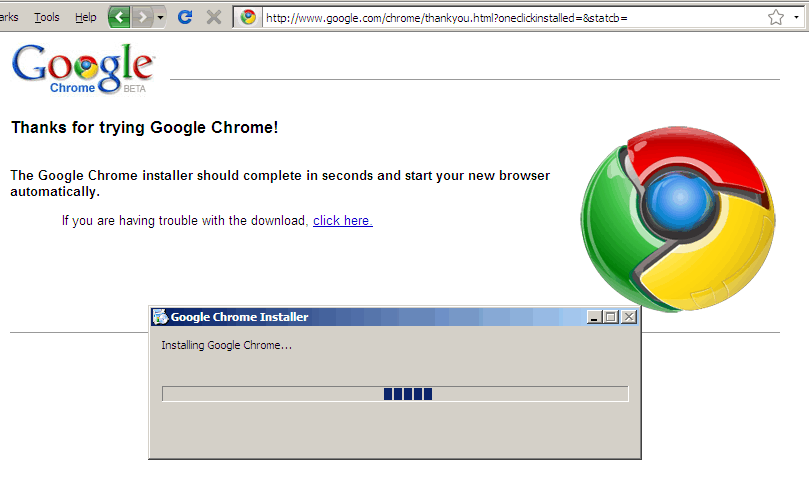
… and (after a fairly short while) started installing the application directly. This may be the most painless install I’ve done in a while.
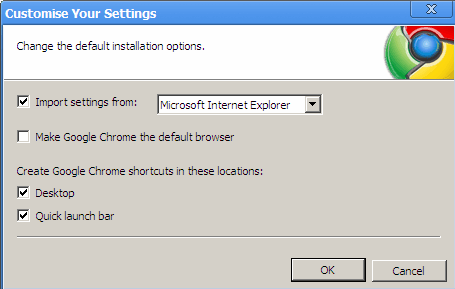
I clicked on “Customise the settings”
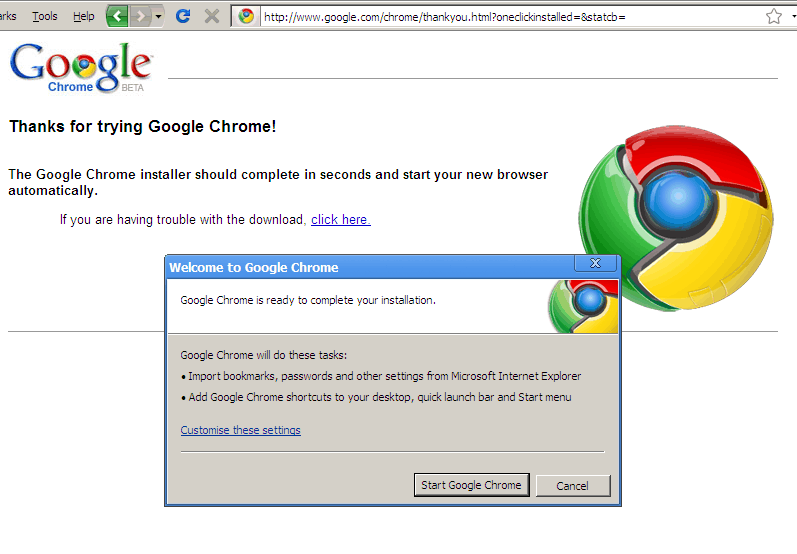
This is what it looks like.
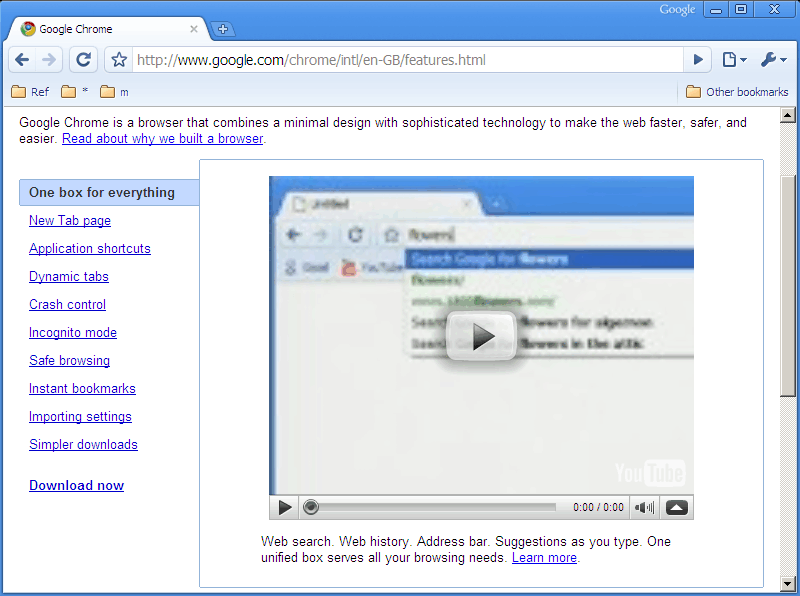
And that’s it! It installs, and launches in just a few seconds. First impressions: the startup and rendering are really fast.
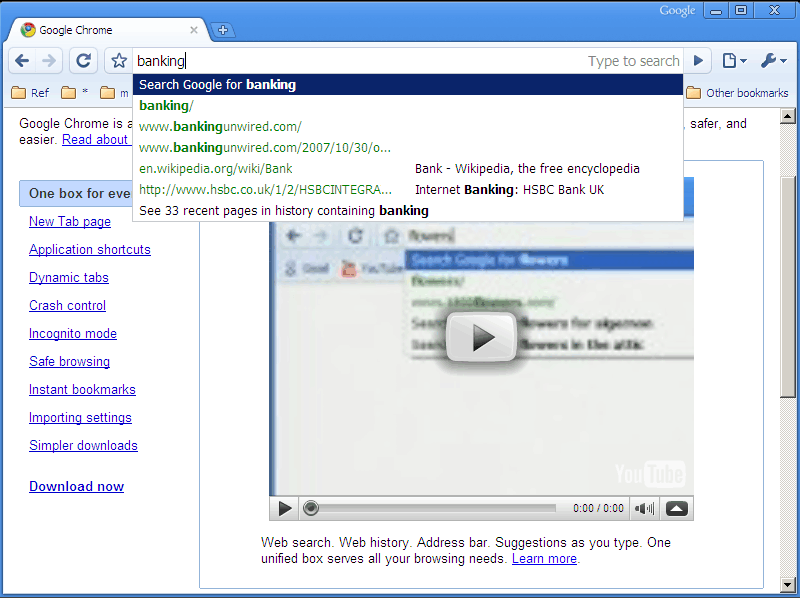
The address bar doubles up as a search bar. Very sensible.
Several nice features: incognito mode, application shortcuts, and developer tools.
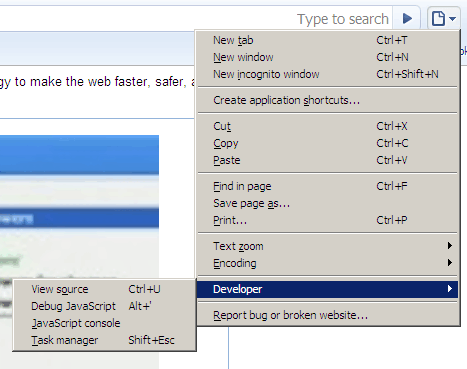
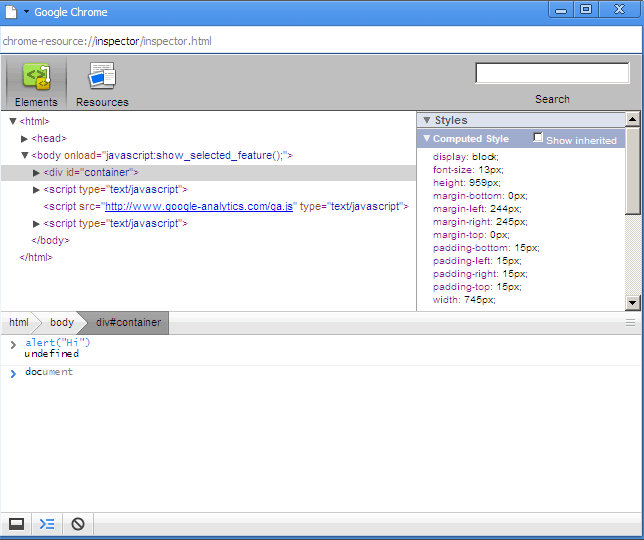
The Javascript console has Javascript autocompletion! Watch out, Firebug.
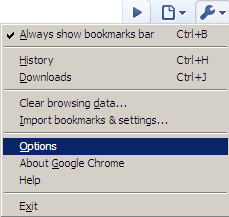
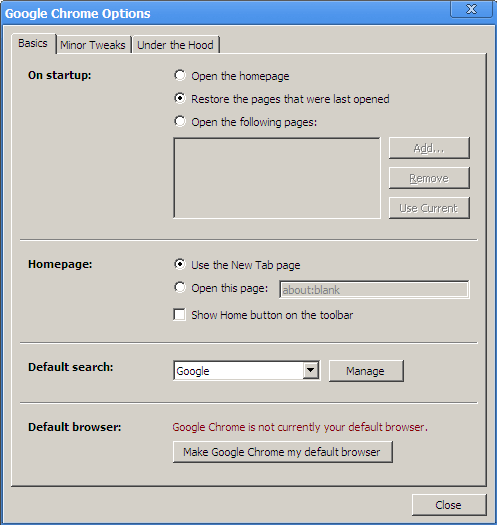
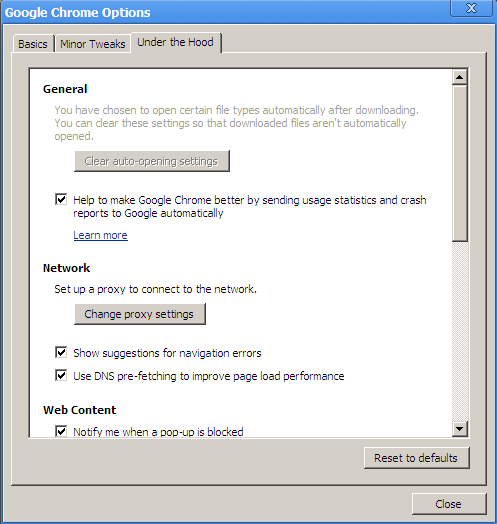
The “Use DNS pre-fetching” looks interesting. My browsing certainly seems faster. Might be faster than Opera, even.
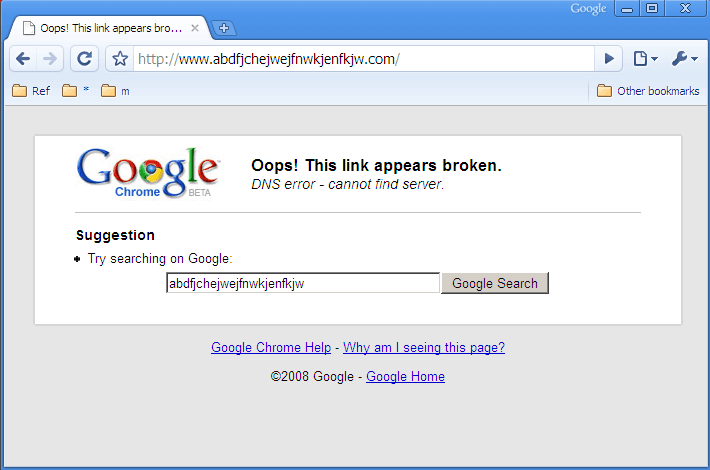
The “Show suggestions for navigation errors” feature.
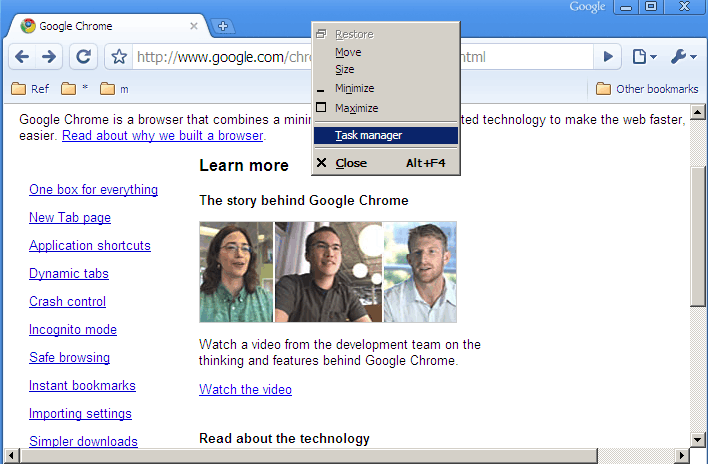
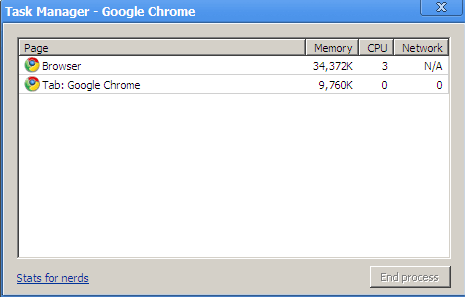
There’s a task manager…
… that shows how much memory each site uses.
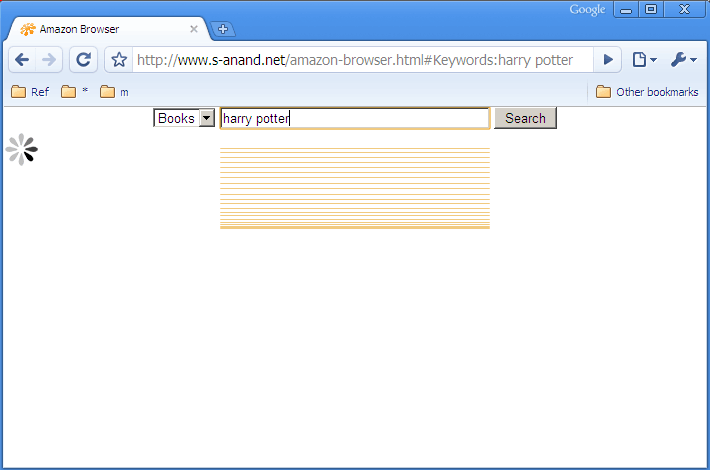
But not all is good. This jQuery animation on my site leaves trails behind.
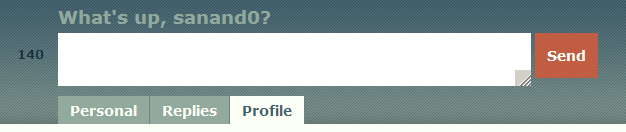
And the text box resizing is good, but feels a bit… wrong, somehow.
Plus: I can re-import history, bookmarks, etc. from Firefox at any point, so I don’t have to worry about using this as a secondary browser.
Update (8am UK, 3rd Sep): Chrome.exe isn’t installed in your “Program Files” folder. It’s in your “Documents and Settings” folder, under “Local Settings\Application Data\Google\Chrome\Application”. (That’s on Windows XP. Not sure about Vista.)
There’s a Themes folder, so I imagine more themes should be on their way.
There doesn’t seem to be an about:config option. But there are a whole lot of others:
- about:cache
- about:dns
- about:histograms
- about:memory
- about:plugins
- about:stats
- about:version
- about:crash
- about:internets
- about:network
- about:blank
- about:shorthang
- about:hang
- about:objects
I’m not entirely sure if the last two work. Based on comments at John Resig’s blog. Go through the code to see if you can find more.
Comments
With Chrome’s Incognito mode, it uses a different directory to store the cookies. This allows two or more people to login to their Gmail accounts in different tabs.
Cheers,
D.